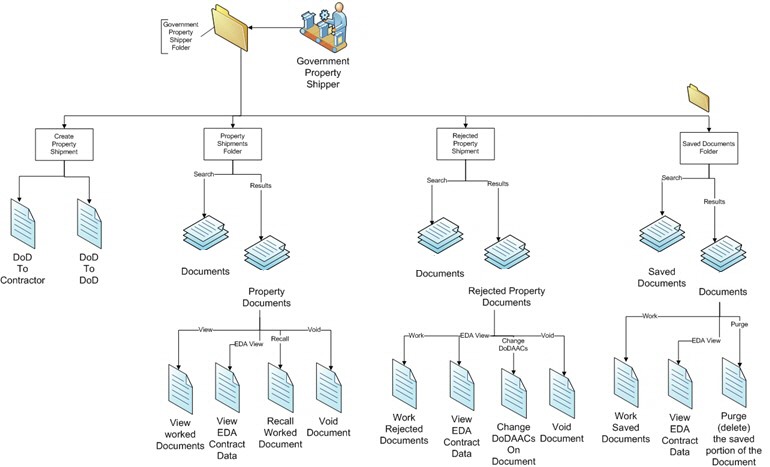
The Government Shipper selects the Government Shipper dropdown menu to view what Folders are available to them.
GFP Government Shipper Folders have a 2 step process:
1. Enter in Search information to limit the number of records brought back in the folder.
NOTE: The more information entered on the search page, the easier it is to find a specific record.
2. Select the Submit Button on the search page, and you will be taken to the Folder's results page with the list of records returned. See Below:
Property Transfer
The Government Shipper "Property Transfer" dropdown will be displayed when a GFP Government Shipper user cursors over the Government Shipper Link. If the GFP Government Shipper user clicks on the Government Shipper Link, the Government Shipper dropdown will be displayed as links on the page. This dropdown is used by GFP Government Shippers to create, work, and view all of their GFP Documents.
Create Document
Click this Link to create a Property Receipt Document in GFP.
Shipment Folder
A Link will be available to search for and work GFP Property Receipt Documents.
The Government Shipper selects the Property Transfer dropdown menu and selects the Shipment Folder link.
The Shipment Folder contains all Property Transfer documents that need to be received within the CAGE Code you selected. From here you can:
- View document information
- Submit Shipment partial acceptance, acceptance, or rejection
- Place Documents on hold (H)
NOTE: You can open a document by clicking the Shipment Number or Invoice Number.
Rejected Shipment Folder
A Link will be available to search for and view GFP Rejected Property Shipment Documents created with the Government Shippers assigned Cage Code which have been rejected.
Saved Documents Folder
A Link will be available to search for Draft Documents which have been saved but are not yet submitted into the GFP Application.