Electronic Data Access (EDA) - GFP Position Report
 

GFP Position Report

Training Document


The GFP Position Report provides information on the items in the contractor’s custody either for a specific contract or under all contracts.


EDA Roles

Roles with access to the GFP Position Report:

  • Advanced Reporting
  • Acquisition Sensitive Reporting
  • EDA Executive Reporting User
  • WAWF Vendor
Where to Run the Report

Expand the Reports menu under Analytics and select the GFP Reports option.


The image provides a preview of the GFP Position Report Results Search Page.


In the GFP Reports section select the Contract Closeout Management Report.


The image provides a preview of the GFP Position Report Results Search Page.


Search Criteria

The GFP Position Report page displays. Enter search criteria to retrieve desired data.

GFP Position Report Search Criteria:

Do you want to search by *

  • CAGE Code (radio button)
    (field displays when ‘CAGE Code’ is selected)
    • CAGE Code *
  • Contract Number/Order Number (radio button)
    (fields displays when ‘Contract Number/Order Number’ is selected)
    • Contract Number *
    • Order Number
  • Issue/Admin Group (radio button)
    (fields displays when ‘Issue/Admin Group’ is selected)

    Issue By Search By:

    • Organization Group

      (field displays when 'Organization Group' is selected)

      • Issue Organizational Group

        (pop-up displays when Find Group is clicked)

        • Issue Organization Find Organization Group by Group Name
        • Issue Organization PIEE Level 2
          • Buttons
            • Save
            • Cancel
      • Include Subgroups? (field is a toggle)
    • Organization Code

    Admin By Search By:

    • Organization Group

      (field displays when 'Organization Group' is selected)

      • Admin Organizational Group

        (pop-up displays when Find Group is clicked)

        • Admin Organization Find Organization Group by Group Name
        • Admin Organization PIEE Level 2
          • Buttons
            • Save
            • Cancel
      • Include Subgroups? (field is a toggle)
    • Organization Code

    Buttons:

    • Find Group
    • Clear Group

The image provides a preview of the GFP Position Report Results Search Page.


Buttons:

  • Search
  • Bookmark
  • Cancel

Click the Search button after entering the search criteria. The search results display on the following page.

Search Results

The GFP Position Report Results table displays the search results.

GFP Position Report Search Results:

  • Contract Number
  • Delivery Number
  • Accountable CAGE
  • Item Name
  • Item Description
  • NSN
  • MFR CAGE
  • Part Number
  • Model
  • Quantity
  • UoM
  • Unit Acquisition Cost
  • On Attach?
  • Serially Managed (hyperlink) (clicking the hyperlinked text (Y/N) opens a pop-up with detailed item information)
  • Admin By DoDAAC
  • Issue By DoDAAC

The image provides a preview of the GFP Position Report Search Results page.


Buttons:

  • Export
    • As CSV
    • As Excel
  • Save Search
  • Refine Search
  • New Search

NOTE: The columns are sortable.


View Managed Items

To view the managed items, navigate to the Serially Managed column on the GFP Position Report page and click the appropriate hyperlink: Y for serially managed items or N for non-serially managed items. A pop-up appears displaying item management information for that GFP contract.


The image provides a preview of the GFP Position Report Search Results page.


View Serially Managed Items

To view serially managed items, click the hyperlinked Y. This action displays the Serial Number/Unique Ids pop-up window. The pop-up contains two tabs: Serial Numbers and Unique Ids


The image provides a preview of the GFP Position Report Search Results page.


Serial Numbers Tab Columns:

  • Serial No.
  • Conditional Code
  • Condition Effective Date

The image provides a preview of the unique ids tab of searially managed line items.


Unique Ids Tab Columns:

  • UII
  • Condition Code
  • Condition Effective Date

The image provides a preview of the unique ids tab of searially managed line items.


View Non-Serially Manage Items

To view non-serially managed items, click the hyperlinked N. This action displays the Non-Serial Items pop-up window, displaying a list of non-serially managed items related to the position report line item.


The image provides a preview of the GFP Position Report Search Results page.


Non-Serial Items Columns:

  • Quanity
  • Condition Code
  • Effective Condition Code

The image provides a preview of non-searially managed line items.


Exporting Report Results

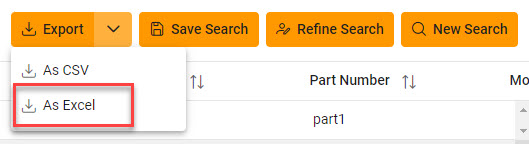
Click the Export button on the search results page to export as CSV or Excel. A job runs to download the file.


The image provides a preview of the GFP Position Report Export Results button.


Viewing Available Downloads of Reports:

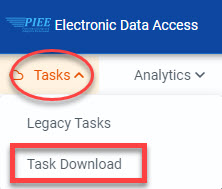
In the navigation panel, under the Tasks menu, select Task Download.


The image provides a preview of the Task navigation option.


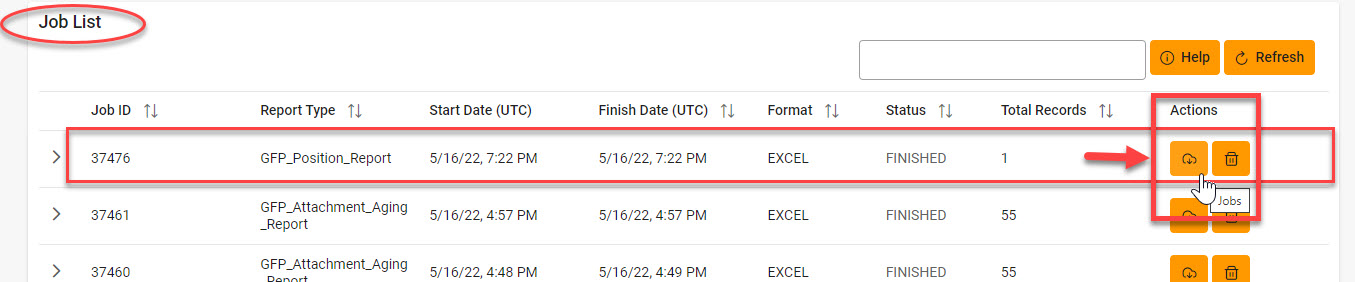
The Job List page appears. Click the Download button in the Actions column.


The image provides a preview of the GFP Position Report Sample Export CSV Results.


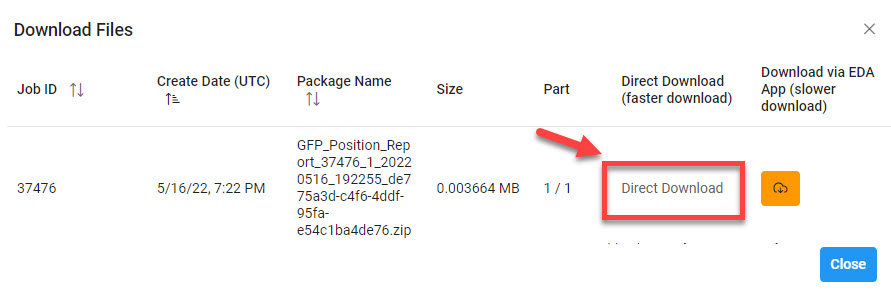
The Download Files pop-up appears with job details. Select the Direct Download link in the Direct Download (faster download) column.


The image provides a preview of the GFP Position Report Sample Export CSV Results.


The system downloads the file to the local machine based on browser settings.

Exported Report Columns:

  • Contract Number
  • Delivery Number
  • Item Name
  • Item Description
  • NSN
  • MFR CAGE
  • Part Number
  • Model
  • Quantity
  • UoM
  • Unit Acquisition Cost
  • On Attach?
  • Serially Managed
  • Admin By DoDAAC
  • Issue By DoDAAC

Sample Export:

The image provides a preview of the GFP Position Report Sample Export CSV Results.