Create Daily Activity Email Alerts
GFP System Administrator and GFP Group View All users can create daily activity email alerts to be notified when property matching specified criteria becomes available for screening. Users can also delete their previously created alerts.
GFP Create Daily Activity Email Alerts Process
- Log in to Procurement Integrated Enterprise Environment (PIEE) Application (https://piee.eb.mil/).
- Open the GFP application by clicking the 'GFP' icon.
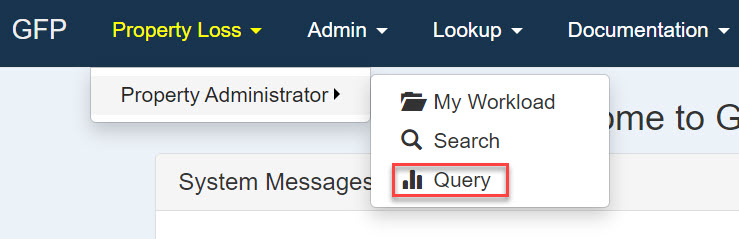
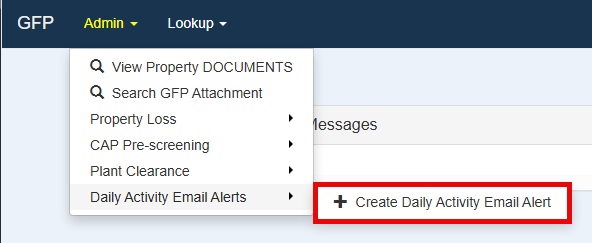
- Select the Daily Activity Email Alerts option in the Admin tab to create a daily activity email alert.
- Click Create Daily Activity Email Alert. The GFP Group View All - Daily Activity Alerts page displays.
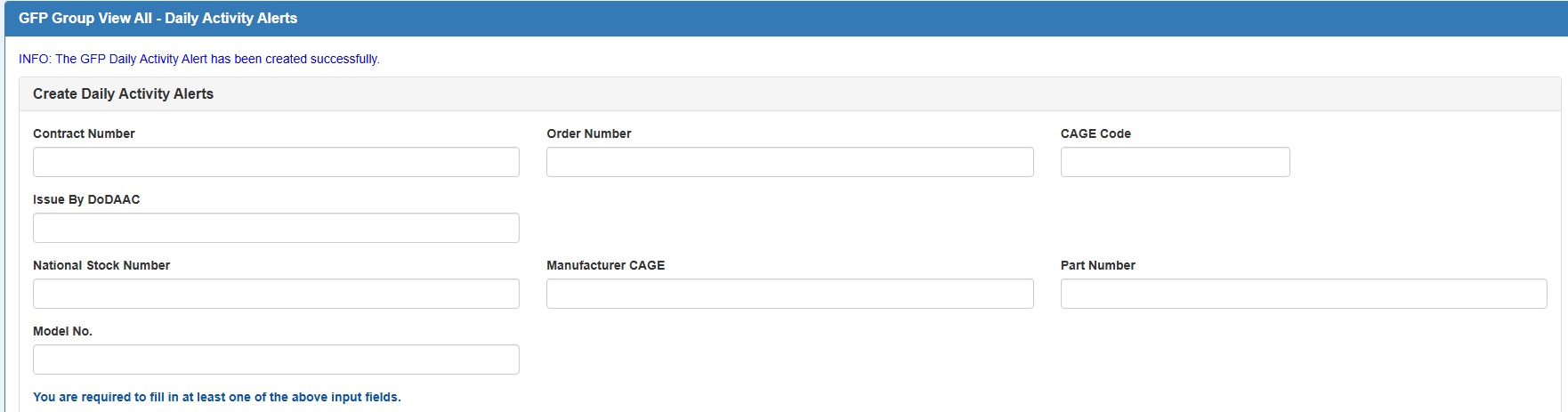
- Enter at least one or more fields in the Create Daily Alert Criteria section.
- Select at least one or more options in the Capabilities Area section.
- Select the Create button to create an alert.
Create Daily Activity Alerts
At least one field must be entered to create an alert.
Create Daily Activity Alerts Criteria:
- Contract Number (if entered without a 'Delivery Order Number')
- Order Number
- CAGE Code
- Issue By DoDAAC
- National Stock Number
- Manufacturer CAGE
- Part Number
- Model No.
Capabilities Area
At least one option must be selected to create an alert.
Capabilities Area options:
Shipments and Receipts
- Created/Submitted Shipment
- Recalled Shipment
- Voided Shipment
- Created/Submitted Receipt
- Rejected Receipt
- Voided Receipt
Plant Clearance Schedule/Case
- Created/Submitted
- Established a Case
- Case Closed
GFP Attachment
- Created/Submitted
- Approved GFP Attachment
- Approved Not in EDA
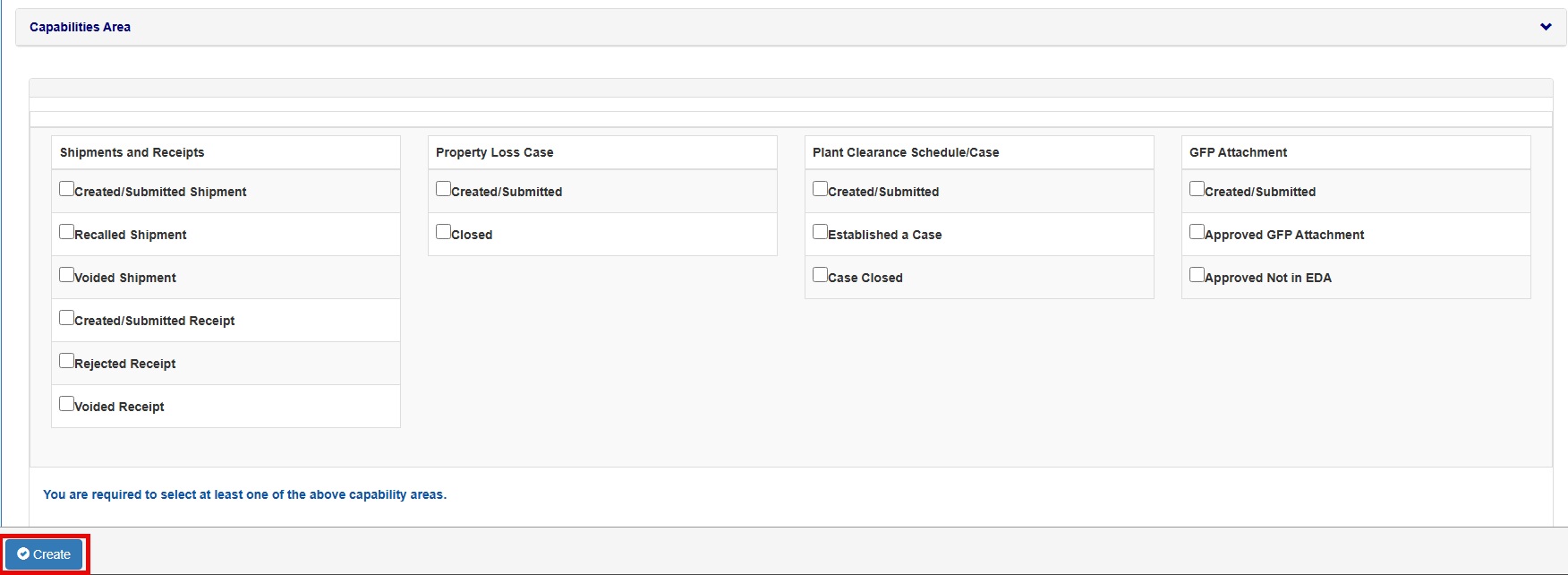
NOTE: When GFP activities matching the alert occur, a daily activity email alert sends to the email on the user's PIEE Profile. Each alert generates one email, detailing the activity that occurred, such as contract information and capability areas. The email service operates outbound only and does not receive replies.
Mapping Table for Alert Criteria
The tables below map the fields used in the alert criteria to their respective data sources.
Alert Criteria: Shipments and Receipts
| Field |
Source |
| Contract Number |
Shipment - Losing Contract Number (Document Information - Losing Information)
Receipt – Gaining Contract Number
|
| Order Number |
Shipment - Losing Delivery Order (Document Information - Losing Information)
Receipt - Gaining Order Number
|
| CAGE Code |
Shipment – Property Shipper
Receipt – Property Receiver
|
| Issue By DoDAAC |
First 6 characters of the Contract Number |
| National Stock Number |
National Stock Number (Line Item Information) |
| Manufacturer CAGE |
Manufacturer CAGE (Line Item Information) |
| Part Number |
Part Number (Line Item Information) |
| Model Number |
Model Number (Line Item Information) |
Alert Criteria: Property Loss Case
| Field |
Source |
| Contract Number |
Contract Number (Header Tab - Contract Information) |
| Order Number |
Contract Order Number (Header Tab - Contract Information) |
| CAGE Code |
Prime CAGE (Header Tab - Contract Information) |
| Issue By DoDAAC |
First 6 characters of the Contract Number |
| National Stock Number |
National Stock Number (Line Item Tab - View Line Item) |
| Manufacturer CAGE |
Manufacturer CAGE (Line Item Tab - View Line Item) |
| Part Number |
Part Number (Line Item Tab - View Line Item) |
| Model Number |
Model Number (Line Item Tab - View Line Item) |
Alert Criteria: Plant Clearance Schedule
| Field |
Source |
| Contract Number |
Contract Number (Header Tab - Contract Information) |
| Order Number |
Contract Order Number (Header Tab - Contract Information) |
| CAGE Code |
Prime CAGE (Header Tab - Contract Information) |
| Issue By DoDAAC |
First 6 characters of the Contract Number |
| National Stock Number |
National Stock Number (Line Item Tab - View Line Item) |
| Manufacturer CAGE |
Manufacturer CAGE (Line Item Tab - View Line Item) |
| Part Number |
Part Number (Line Item Tab - View Line Item) |
| Model Number |
Model Number (Line Item Tab - View Line Item) |
Alert Criteria: Plant Clearance Case
| Field |
Source |
| Contract Number |
Contract Number (Header Tab - Contract Information) |
| Order Number |
Contract Order Number (Header Tab - Contract Information) |
| CAGE Code |
Prime CAGE (Header Tab - Contract Information) |
| Issue By DoDAAC |
First 6 characters of the Contract Number |
| National Stock Number |
National Stock Number (Line Item Tab - View Line Item) |
| Manufacturer CAGE |
Manufacturer CAGE (Line Item Tab - View Line Item) |
| Part Number |
Part Number (Line Item Tab - View Line Item) |
| Model Number |
Model Number (Line Item Tab - View Line Item) |
Alert Criteria: GFP Attachment
| Field |
Source |
| Contract Number |
Contract Number (Header Tab - Contract Information) |
| Order Number |
Contract Order Number (Header Tab - Contract Information) |
| CAGE Code |
Contract CAGE (Header Tab - Contract Information) |
| Issue By DoDAAC |
First 6 characters of the Contract Number |
| National Stock Number |
National Stock Number (Provisioned Items Tab) |
| Manufacturer CAGE |
Manufacturer CAGE (Provisioned Items Tab and Requisitioned Tab) |
| Part Number |
Part Number (Provisioned Items Tab and Requisitioned Tab) |
| Model Number |
Model Number (Provisioned Items Tab and Requisitioned Tab) |
Previously Created Alerts
Previously Created Alerts Columns:
- Date Created
- Contract Number
- Order Number
- CAGE Code
- Issue By DoDAAC
- National Stock Number
- Manufacturer CAGE
- Part Number
- Model Number
- Capability Area(s) (select the 'Chosen Capabilities' button in the column to display the Capabilities Area(s) for the alert)
Action Buttons:

NOTE: Columns are sortable and filterable.
CAP Pre-screening Document
GFP System Administrator and GFP Group View All users will have access to the Search CAP Pre-screening Document option under the Admin dropdown in the GFP module.
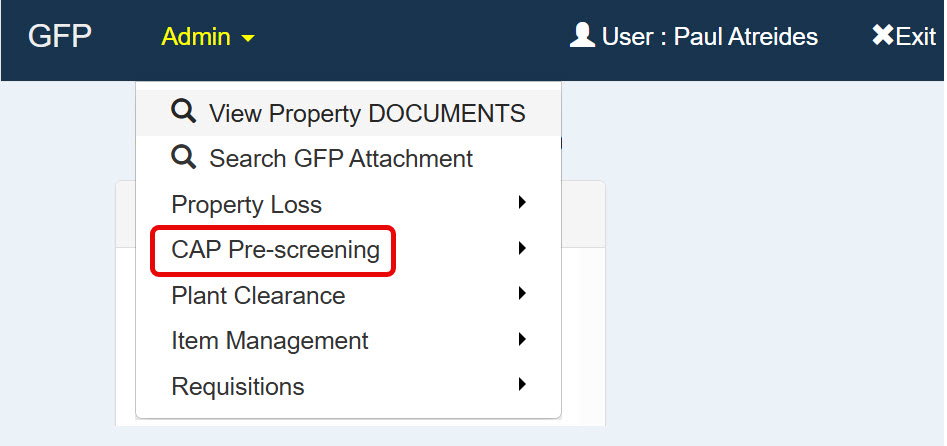
Clicking the Search CAP Pre-screening Document option will take the user to a search criteria page.
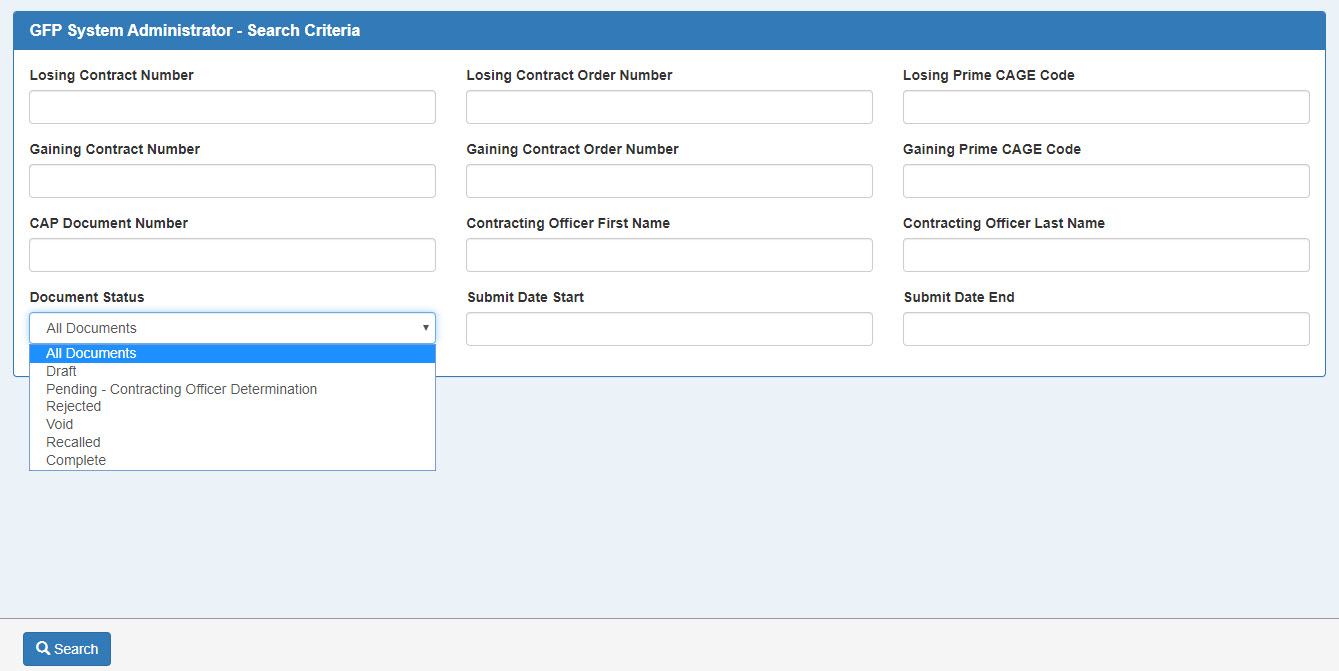
Search Criteria
- CAP Document Number
- Losing Contract Number
- Losing Contract Order Number
- Losing Prime CAGE Code
- Gaining Contract Number
- Gaining Contract Order Number
- Gaining Prime CAGE Code
- Contracting Officer
- Document Status
- Submit Date Start
Case Status
- All Documents
- Draft
- Pending - Contracting Officer Determination
- Rejected
- Void
- Recalled
- Complete
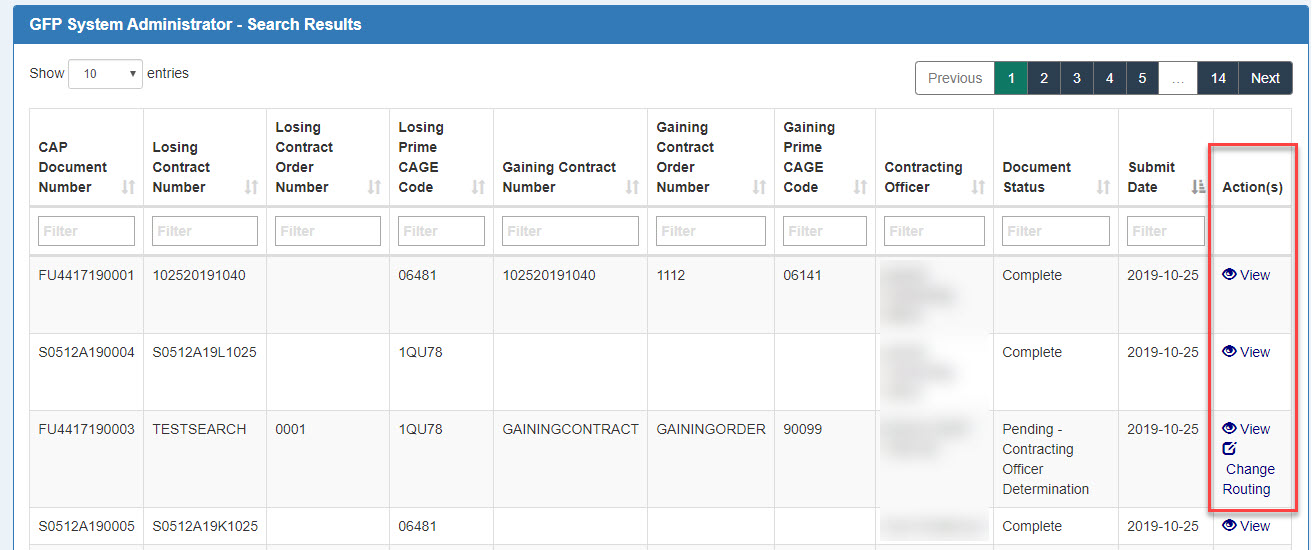
GFP System Administrators can change the routing of CAP Pre-screening documents in a Pending – Contracting Officer Determination status by clicking Change Routing.
Query Property Loss Data
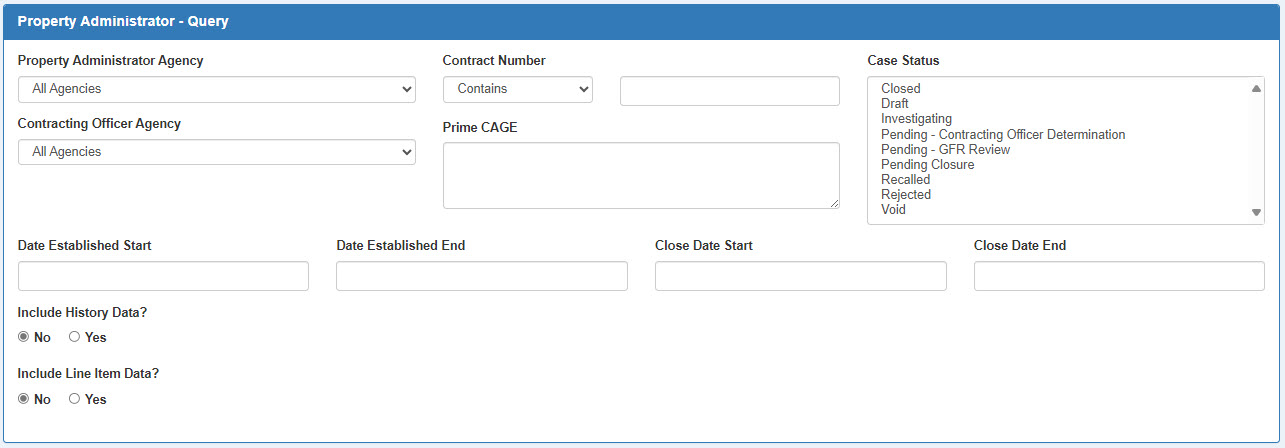
GFP Group View All, Industrial Property Management Specialist, and Property Administrator users have the ability to perform a data query of Property Loss Cases with a specified set of parameters. Query results are exportable into a spreadsheet by entering all desired criteria and selecting the Run Query button.
Query Criteria
- Property Administrator Agency
- Contract Number
- Case Status
- Contracting Officer Agency
- Prime CAGE
- Date Established Start
- Date Established End
- Close Date Start
- Close Date End
- Include History Data?(Toggle: No/Yes)
- Include Line Item data? (Toggle: No/Yes)
NOTE: If Yes is selected on the Include History Data field, the data displays on the Property Loss Case History tab of the query export.