| EDA Roles |
EDA Roles with the capability to conduct an Award Search in EDA:
- Contracts
- Acquisition Sensitive Reporting
- Advanced Reporting
- CDR POC
- Contract Deficiency Report (Legacy) – PCO
- Contract Deficiency Report (Legacy) – ACO
- Contract Deficiency Report (Legacy) – Reviewer
- EDA Executive Reporting User
- FedMall User
- Upload Attachments/Admin Docs
- Upload/Inactivate Contracts
|
| Search Criteria |
The user will navigate to the Award Search page and enter criteria to retrieve desired data.
Award Details
- Contract Number
- Delivery Order Number
- Contract Mod
- PDS Status
- Reference Procurement Number
- Type of Instrument
- Manually Uploaded
- Obligated Amount [Range]
Locations
- Issue DoDAAC
- Admin DoDAAC
- Pay DoDAAC
- CAGE Code
- UEI
- DUNS
- No UEI/DUNS Reason
Dates
- Effective Date [Range]
- Load Date [Range]
- Signature Date [Range]
- Closed Date [Range]
|
| Search Modifiers |
Search Modifiers may be used to limit results returned for a search criterion.
- Starts With: The data entered in the field will return results that begin with the entered characters.
- Is Null: The data search will return only results that have no value for the search criterion.
- Not Null: The data search will return only results with a value for the search criterion.
- Greater Than or Equal To: The data entered in the field will return results that are greater than or equal to the entered characters.
- Greater Than: The data entered in the field will return results that are greater than the entered characters.
- Equal To: The data entered in the field will return results that are equal to the entered characters.
- Less Than or Equal To: The data entered in the field will return results that are less than or equal to the entered characters.
- Less Than: The data entered in the field will return results that are less than the entered characters.
|
| Example: Awards with a specific PDS Status |
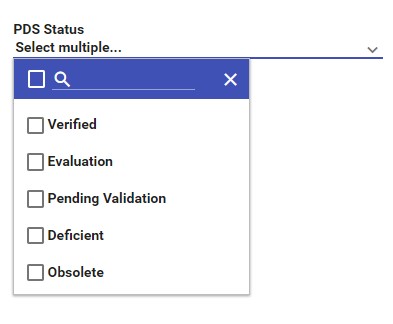
To return all awards with a specified PDS Status, the user will select a value(s) from the PDS Status dropdown menu.
|
| DoDAAC Search Fields |
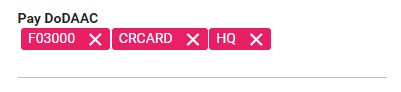
To return all awards with a specified DoDAAC(s), enter the desired information in the applicable DoDAAC field. Multiple DoDAACs are permitted. Partial DoDAACs (with a minimum of one character) are also permitted and must begin with the DoDAAC’s leading character. These capabilities apply to all location code search fields.
|
| PDS Statuses |
Explanation of all PDS statuses in EDA:
Verified: The CCV was created successfully and passed GeX business rule validation. PDS data is from a compliant source and is available for query and WAWF pre-pop.
Evaluation: The CCV was created successfully and passed GeX business rule validation. But the data provider is still evaluating their PDS for compliance (data quality). Since the PDS data is not from a compliant source, PDS data from this mod is not available for query or WAWF pre-pop. Note that Synopsis data may be available for query and pre-pop.
Pending Evaluation: The CCV is pending business rule validation by GeX.
Deficient: EDA knows there is something wrong with the CCV. Reasons could include:
Obsolete: The CCV data is Obsolete. This is usually caused by a modification (index/PDF or PDS XML file) arriving that disrupts the current CCV order in EDA (Example: EDA had PDS data for the award and mod 2, but then receives mod 1). All CCVs for mod’s after the disrupting mod will be marked as O and any extracted index data will be deleted. New conformed versions (CCVs) will be created for each mod that include the changes in the disrupting mod. Example: the CCV for mod 2 will marked as O, a CCV will be created for mod 1, and then a new CCV will be created for Mod 2 that includes mod 1 data.
|
| Search Results |
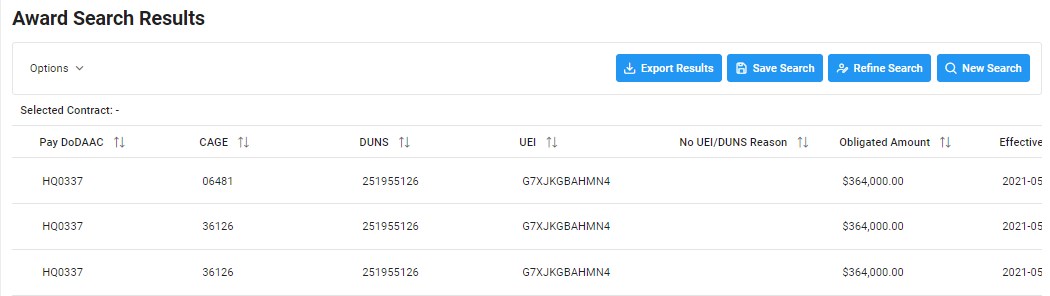
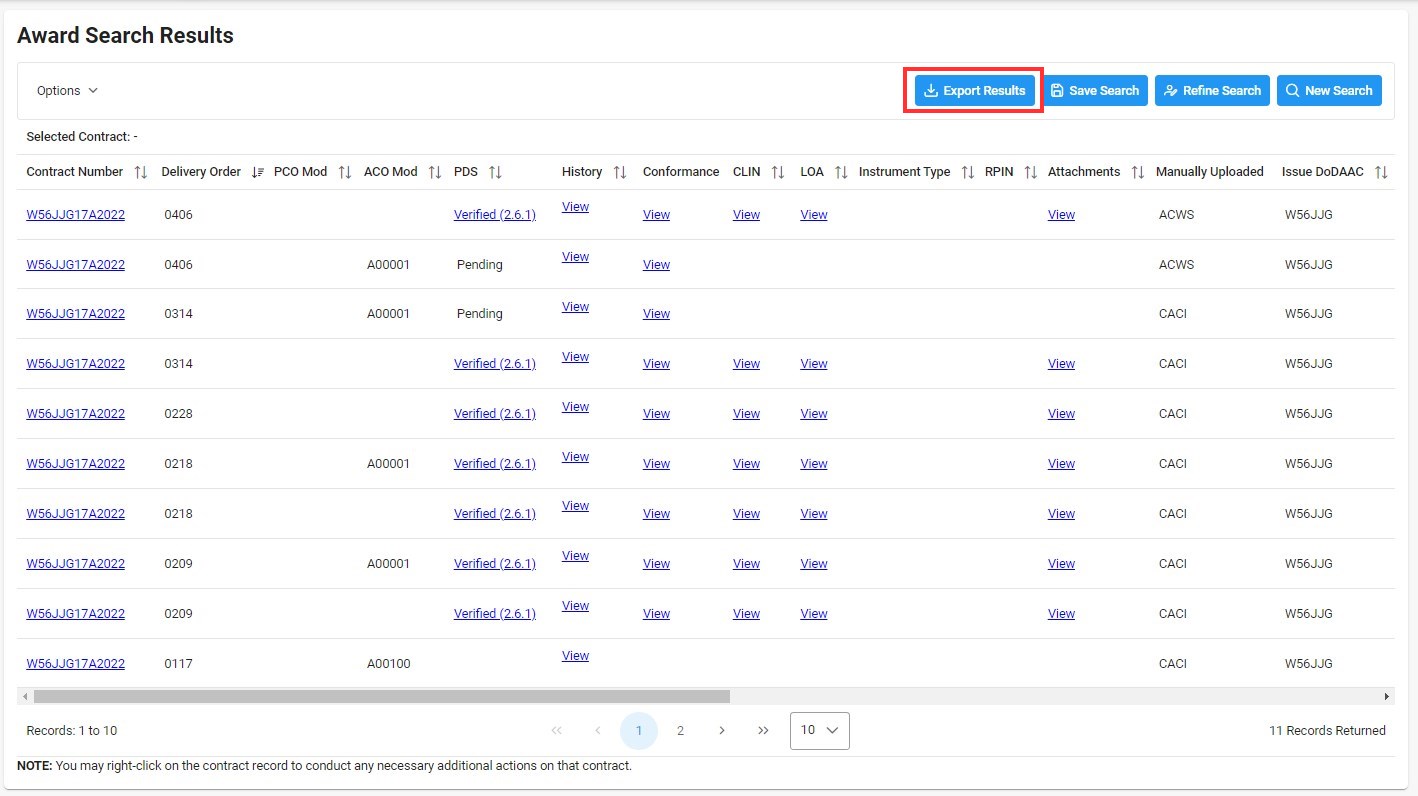
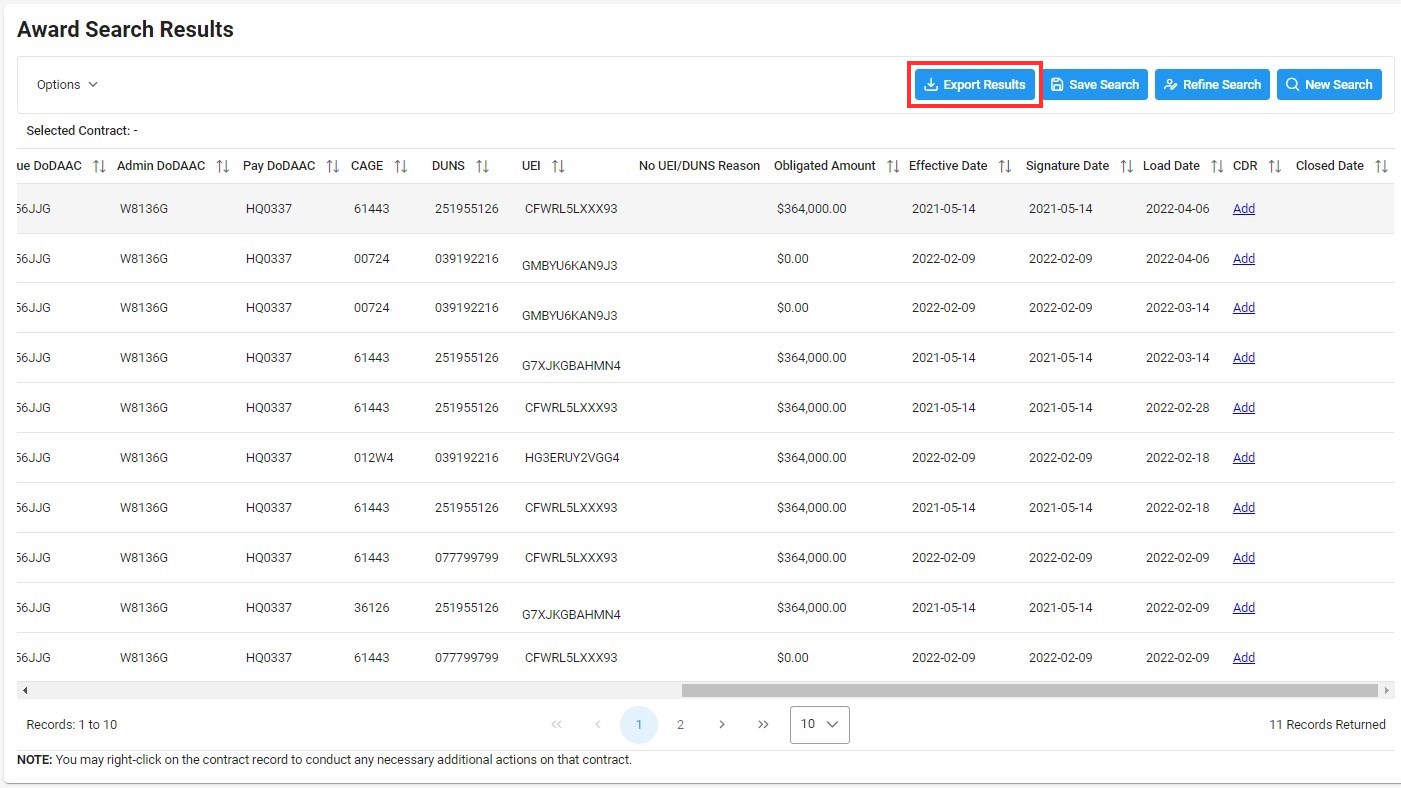
Once the search criteria are entered, selecting the Search button will return a list of Contracts with the requested criteria.
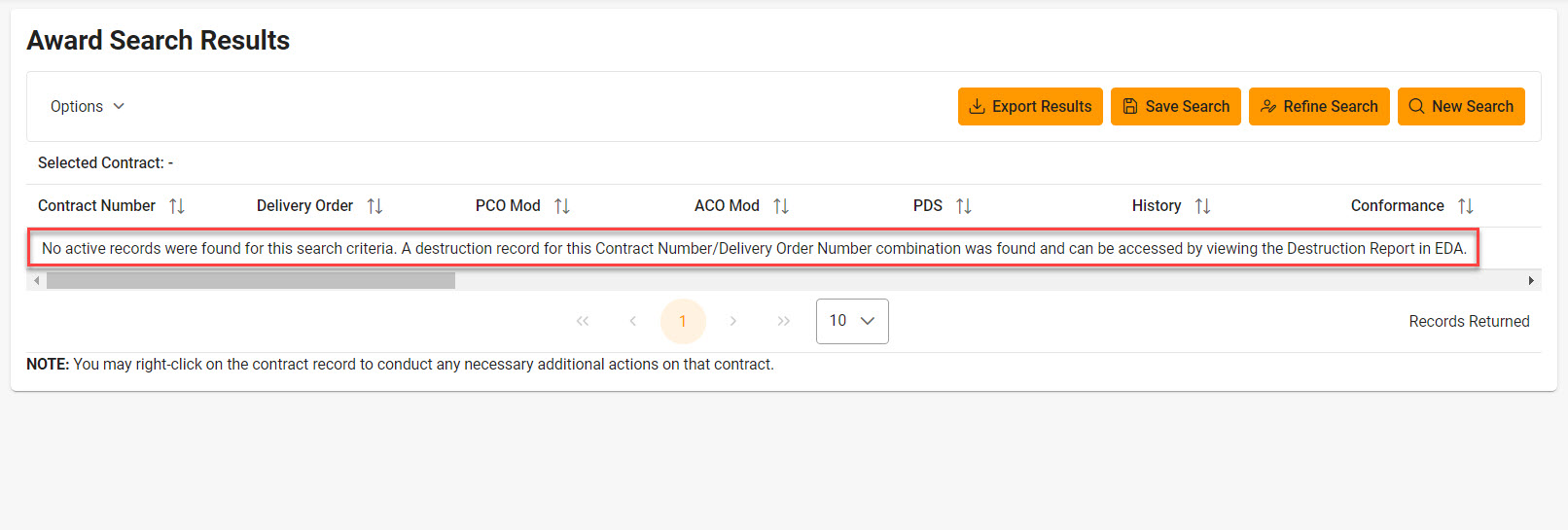
When the entered search criteria return no results, a check for a Death Certificate will take place within the record of destruction. If a record is found in the Destruction Index, EDA will return the following message: “No active records were found for this search criteria. A destruction record for this Contract Number/Delivery Order Number combination was found and can be accessed by viewing the Destruction Report in EDA”.
|
| Sample PDS Output |
The user can view the PDS version of the contract by selecting links in the PDS column. The PDS will be displayed in XML.
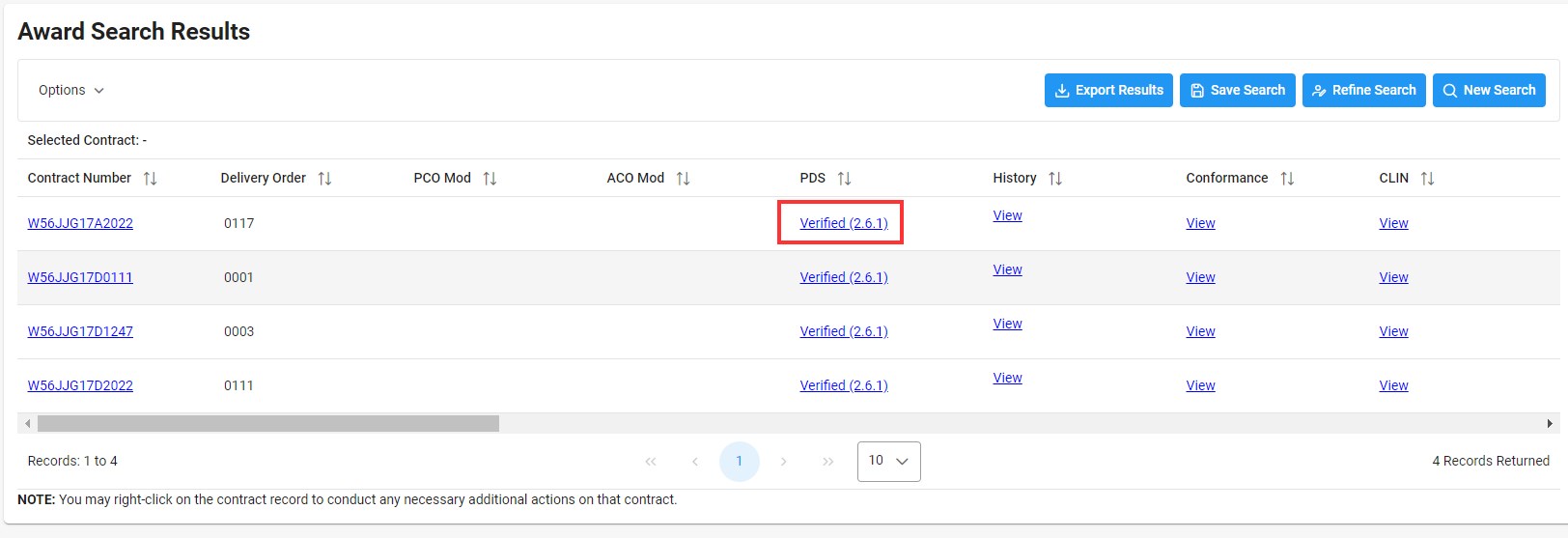
Sample PDS Output:
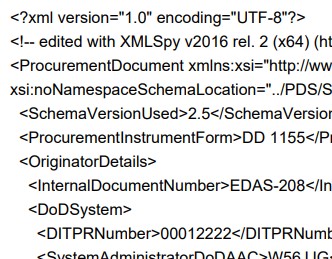
|
| Options |
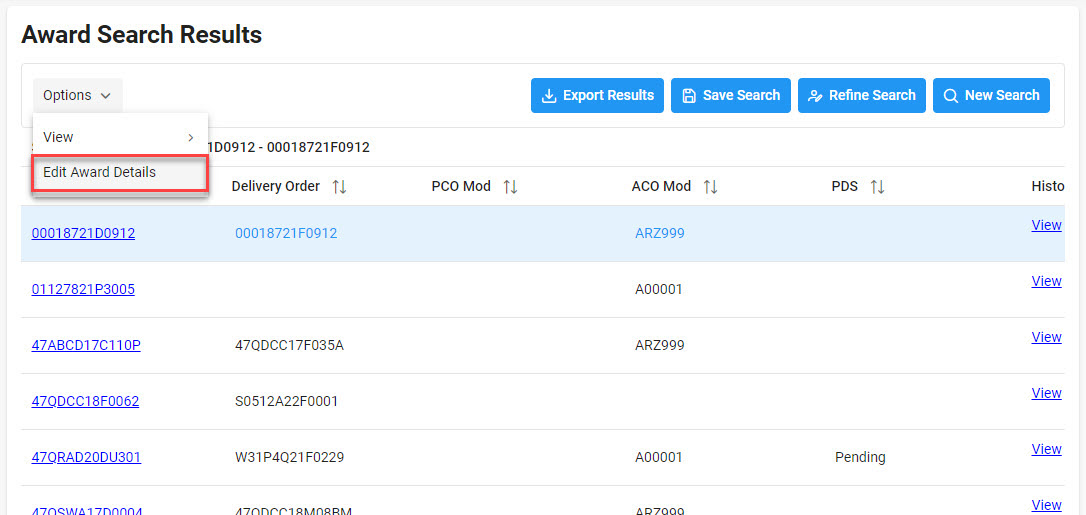
The Options menu will present the user with all actions available for a contract. When a contract is highlighted, expand the Options menu to display all actions that may be taken.
When a contract is highlighted, expand the Options menu to display all actions that may be taken.
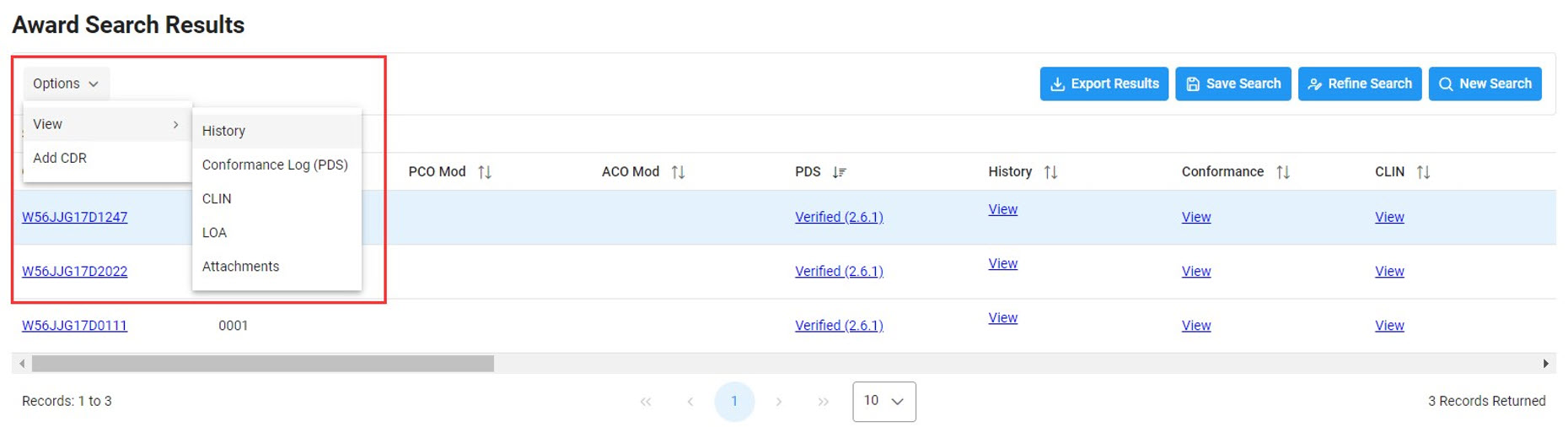
|
| Inactivate/Replace PDF |
Users registered for the Upload/Inactivate Contracts role will have the ability to inactivate and replace PDF files for manually uploaded contracts with the user’s registered DoDAAC(s).
To inactivate a PDF, highlight the desired contract and select Inactivate PDF under the Options menu.
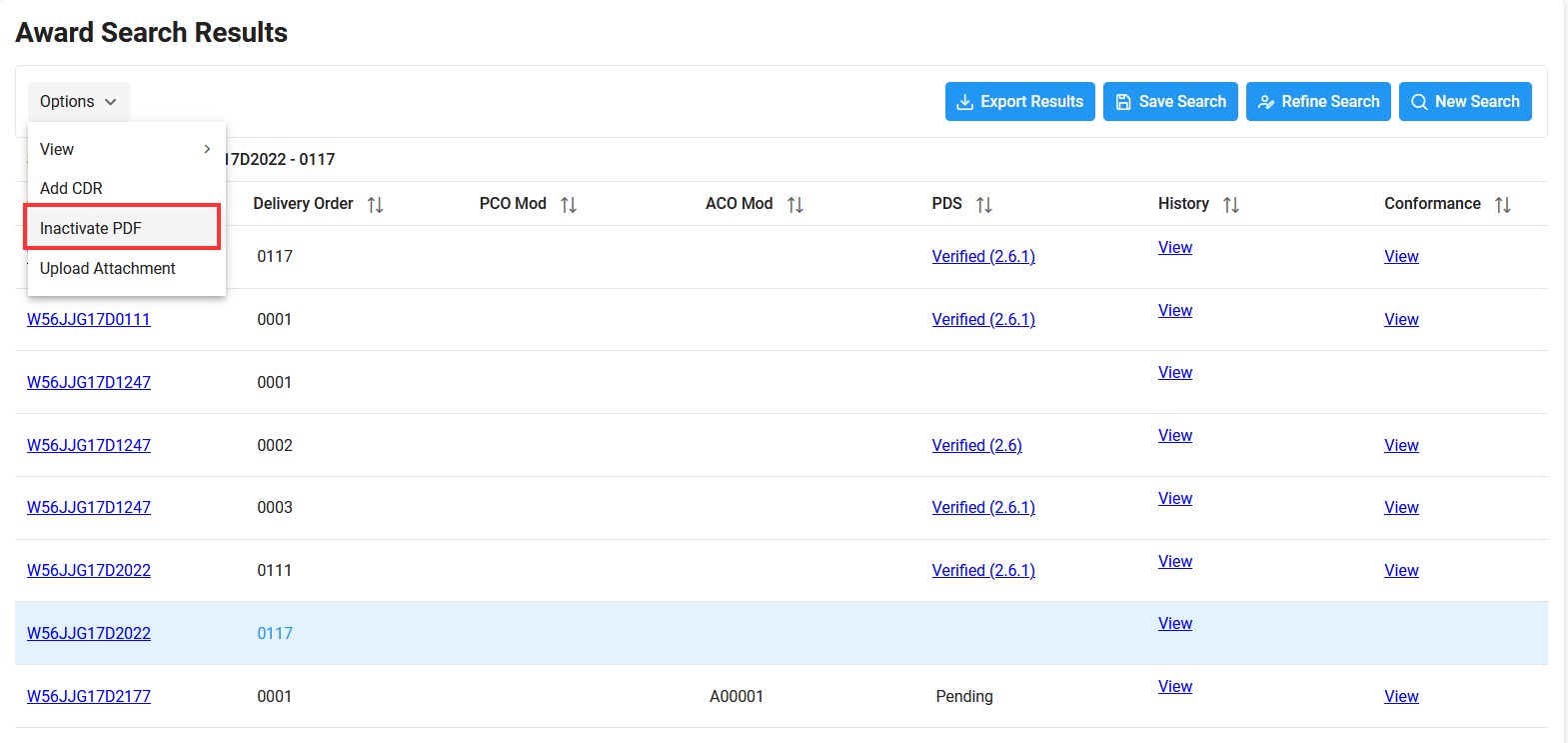
The Inactivate PDF modal is displayed with contract details.
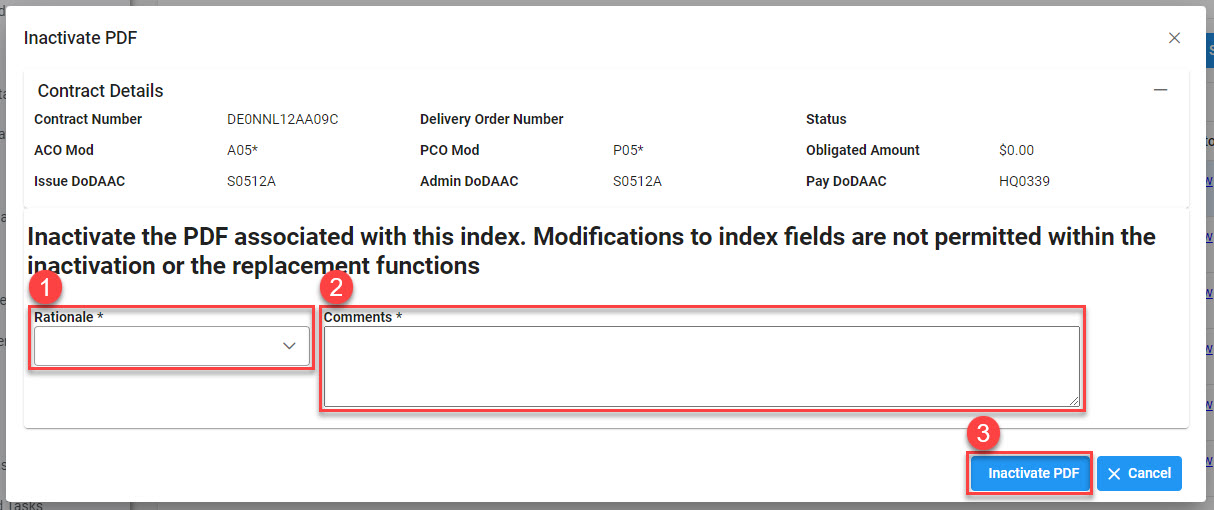
- Select a value from the Rationale dropdown menu.
- Enter comments explaining the PDF inactivation.
- Select the Inactivate PDF button to complete inactivation.
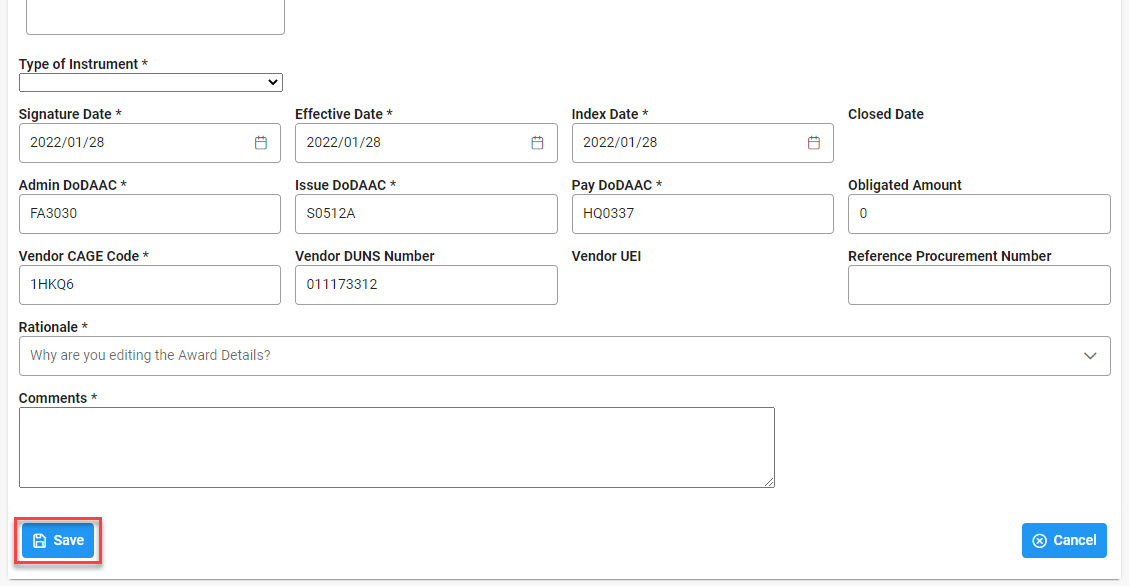
To replace a PDF, highlight the desired contract and select Edit Award Details under the Options menu.
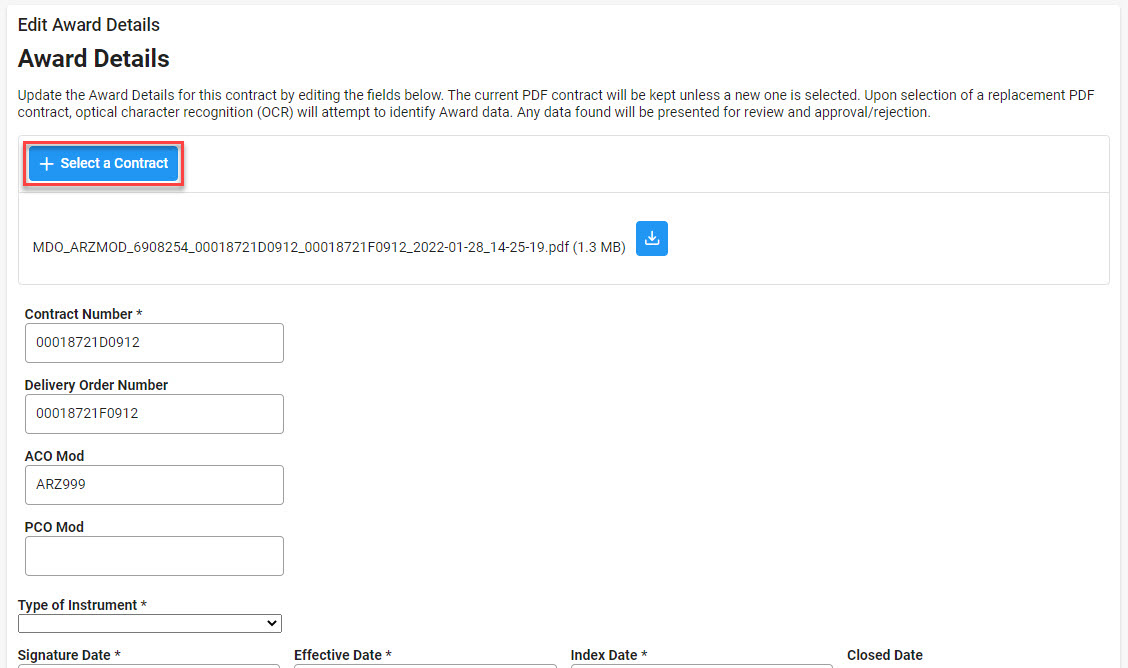
The Edit Award Details page is displayed. To replace the existing contract with a new PDF, select the Select a Contract button and select the appropriate file from the local directory.
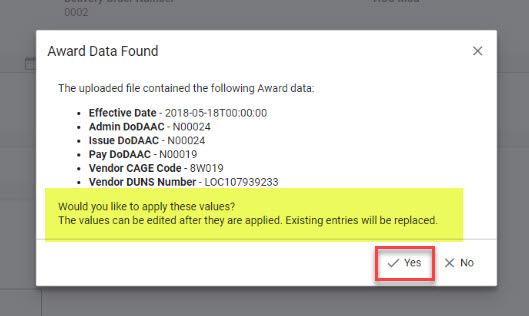
Once a new PDF is selected, an attempt will be made to parse any available data from the file. If data can be parsed, the Award Data Found modal will display, allowing the user to review the data. Select Yes to accept the data or select No to close the modal and proceed without populating the data.
Once all required fields are completed, select the Save button to apply the new contract PDF and data.
|
| Add CDR |
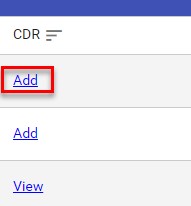
Users may access CDR from the EDA Award Search. To add a CDR to an Award in the EDA application, the user must also be registered for the CDR Initiator role. Select the Add button in the CDR column within the search results. The user will be taken to the CDR application. Complete all required fields and submit.
|
| Attachments |
GFP attachment files (located in the GFP modules) will be viewable via the EDA application to users that also have active roles in GFP.
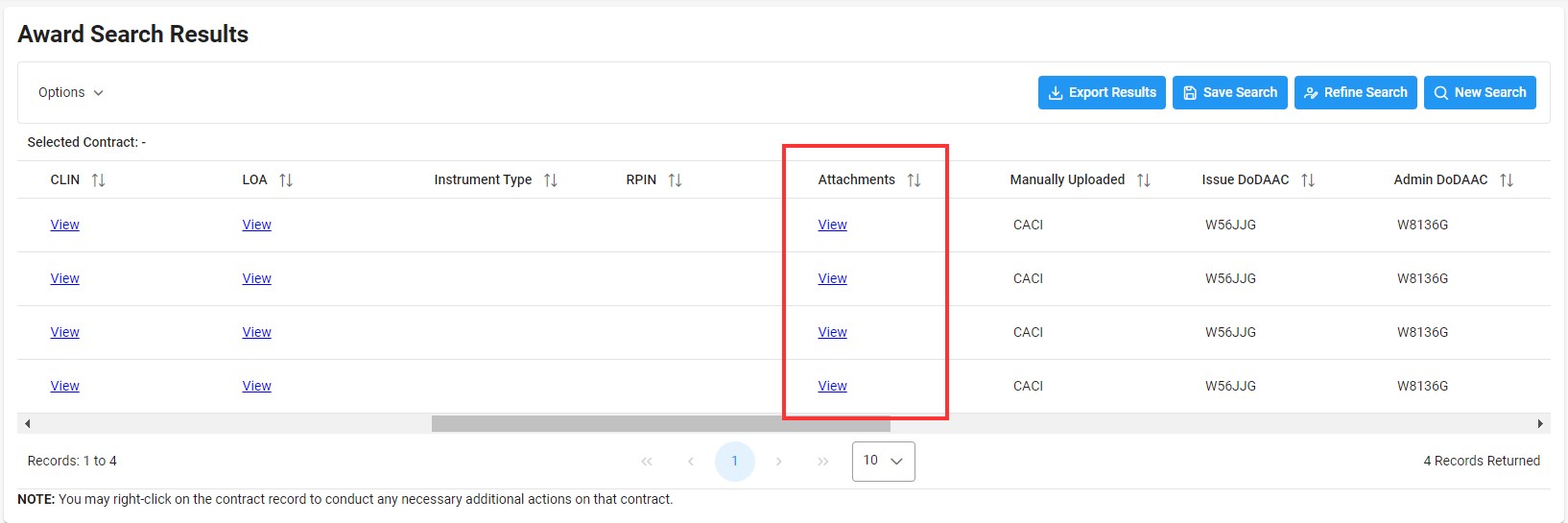
The Attachments column in the Award Search results will display a “View” link for any available GFP attachments. To view a record of an attachment, select the View link within the Attachments column.
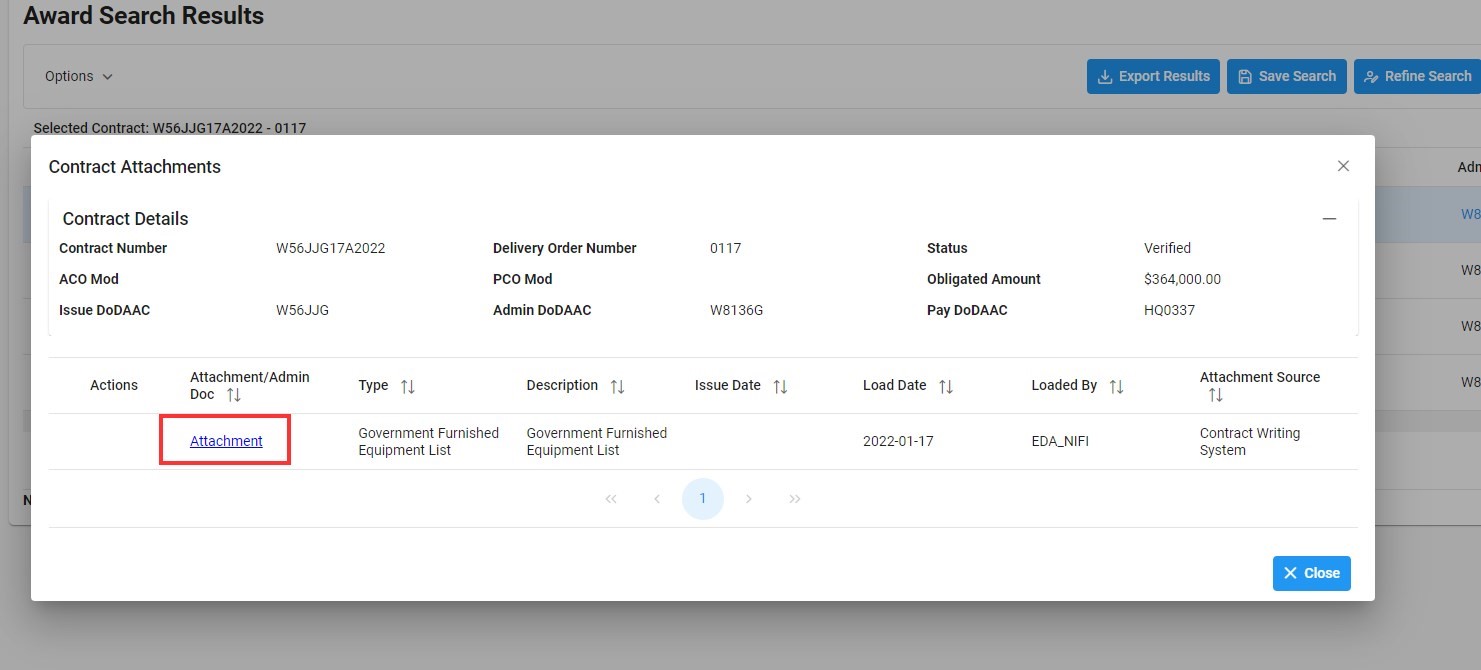
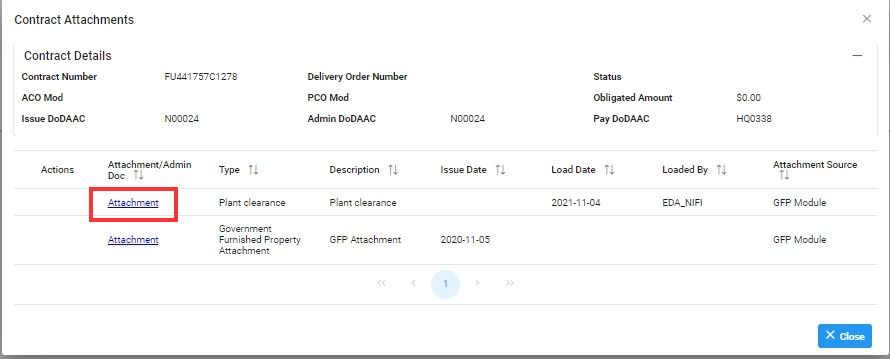
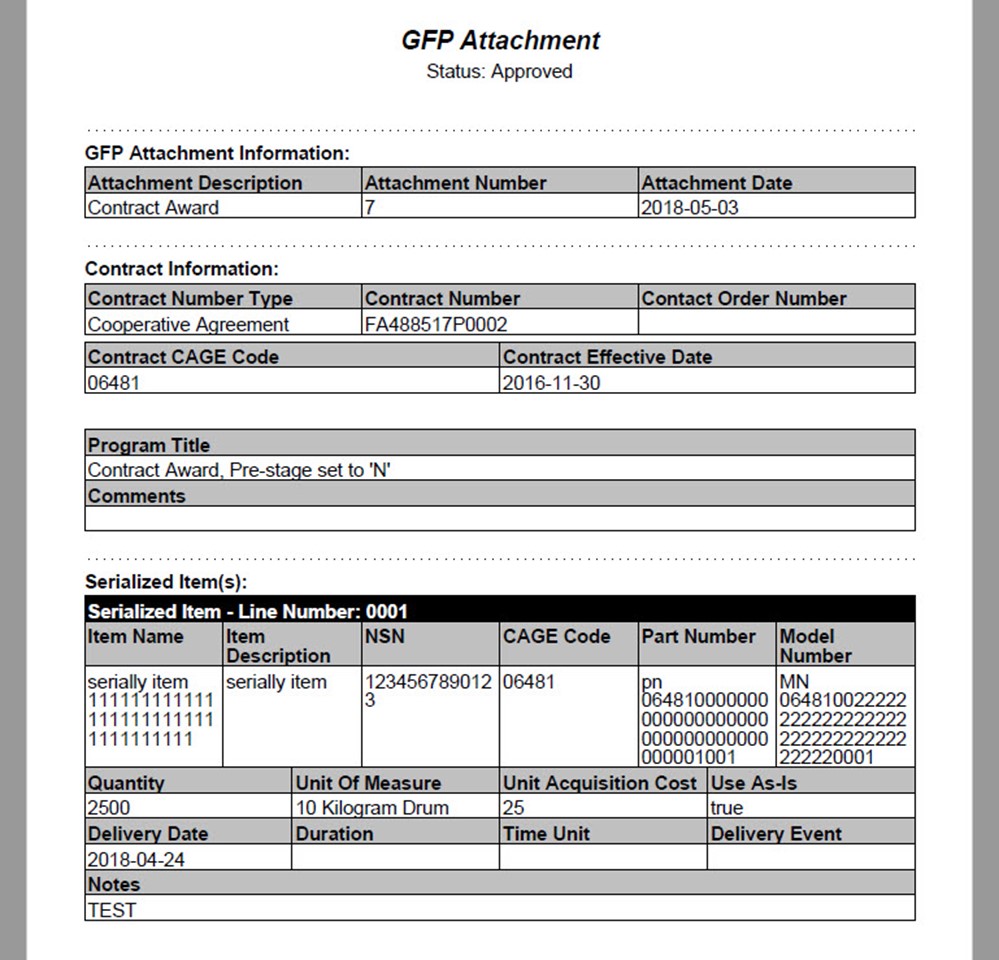
The attachment record will display. To view and save GFP attachments, select the Attachment link. Select Open or Save when prompted.
For Contracts without an attachment, the Attachments column will display a “Add/Lookup” link that will allow users to view any attachments found in the GFP modules.
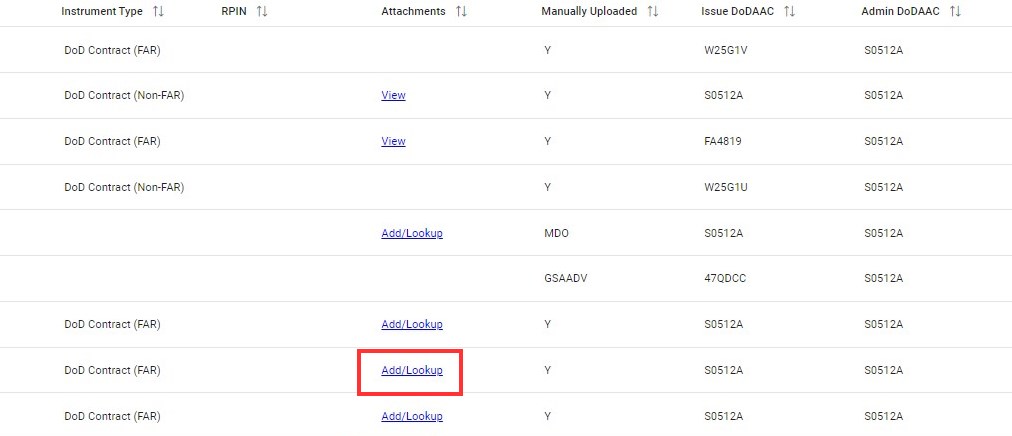
If an attachment is found in the GFP modules, the attachment record will display. To view and save GFP attachments, select the Attachment link. Select Open or Save when prompted.
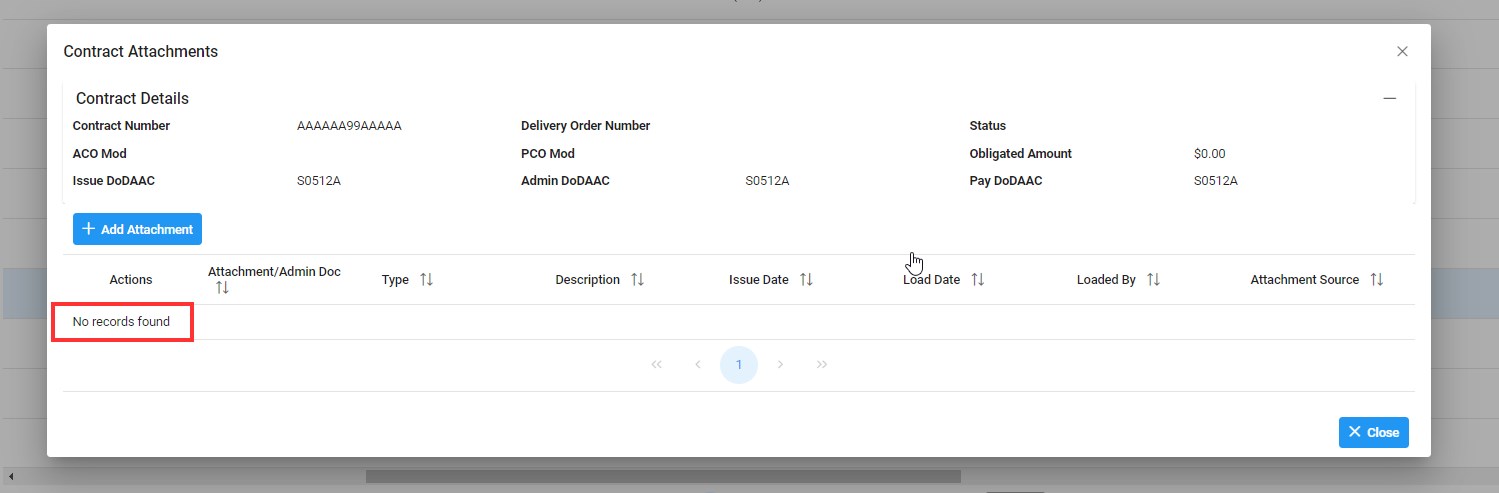
If no attachments are found in GFP using the Lookup link, the user will be notified of such.
Sample GFP attachment:
|
| Exporting Search Results |
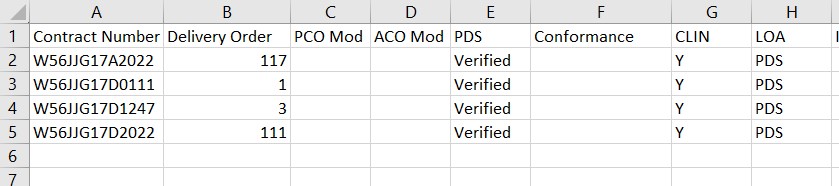
Once the search results are returned, the Export Results button will allow the user to export search results in CSV format for import to a spreadsheet.
Sample Export:
|