| EDA Roles |
Roles with access to the User Report in EDA:
- Acquisition Sensitive Reporting
- Advanced Reporting
- EDA Executive Reporting User
|
| Search Criteria |
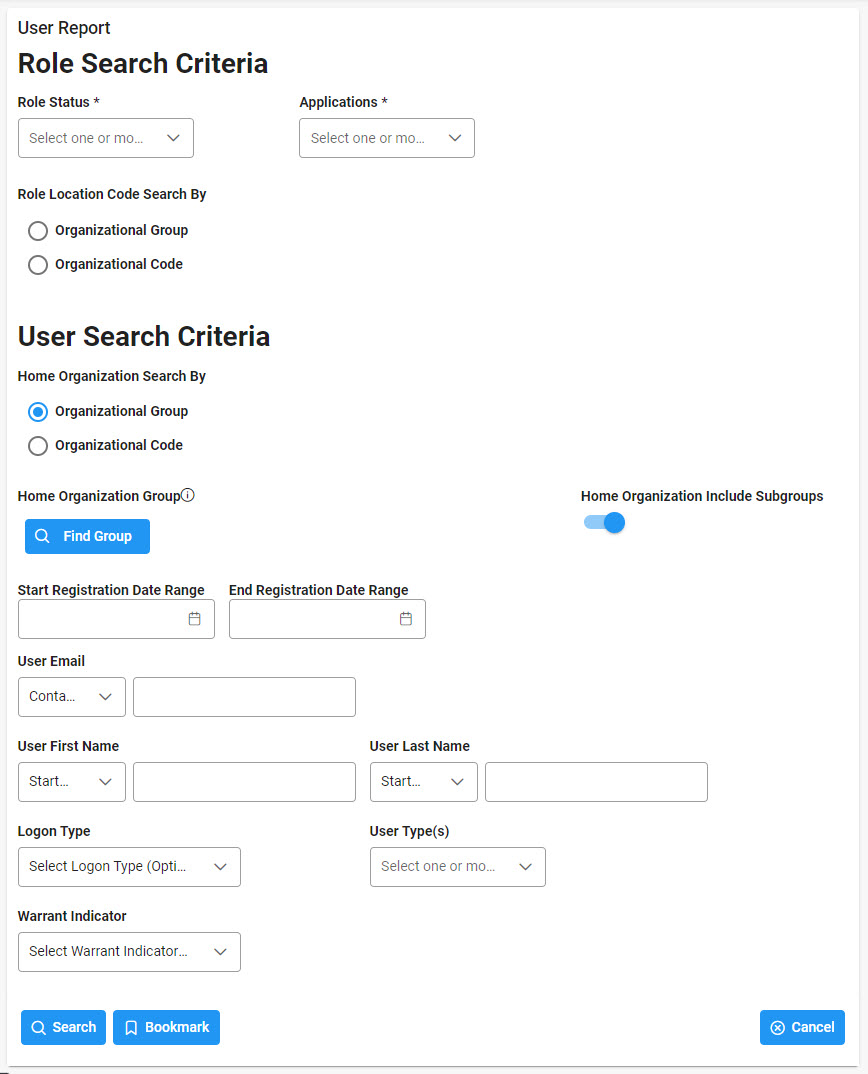
The user will navigate to the User Report page and enter criteria to retrieve desired data.
Role Search Criteria:
- Role Status * (Active/Inactive/Archive)
- Applications * (See list below)
-
Role Location Code Search by
-
Organizational Group
-
Role Location Group
- Home Organization Find Organizational Group by Group Name (Pop-up box)
- Home Organization PIEE Level 2
- Role Location Group Include Subgroups
-
Organizational Code
- Role Location Codes (Starts With/Equal To)
- Roles
User Search Criteria:
-
Home Organization Search by
-
Organizational Group
-
Home Organization Group (Pop up box)
- Home Organization Find Organizational Group by Group Name
- Home Organization PIEE Level 2
- Home Organization Include Subgroups
-
Organizational Code
- Home Organization Location Codes (Starts with/Equal to)
- Start Registration Date Range
- End Registration Date Range
- User Email (Starts With/Equal To/Contains)
- User First Name (Starts With/Equal To)
- User Last Name (Starts With/Equal To)
- Logon Type (Common Access Card/Software Certificate/User ID \ Password)
- User Type(s) (Civilian/Military/Contractor)
- Warrant Indicator (Y/N)
|
| Example: Application Selection |
To return results with a specific Application, select a value from the Application Selection dropdown menu.
Applications include:
- PIEE – Administrative Support
- eMIPR – Military Interdepartmental Purchase Request
- WAWF – Wide Area Workflow
- SPRS – Supplier Performance Risk System
- CLOSEOUT – Contract Closeout
- CLS – Clause Logic Service
- CON-IT Contracting Information Technology
- CSP – Contractor Submission Portal
- EDA – Electronic Data Access
- FedMall
- GFP – Government Furnished Property
- IUID Registry
- JAM – Joint Appointment Module
- AT-AT - Combined Audit Tracking & Action Tool
- CDR – Contract Deficiency Reporting
- CEDMS – Corporate Electronic Document Management System
- PALT – PALT, Protest Tracker & REA
- Advana
- PC – Purchase Card
- PCM – Purpose Code Management
- PIEE – Procurement Integrated Enterprise Environment
- PPML – Procurement Process Model Library
- SDW - Shared Data Warehouse
- SOL - Solicitation
- SPM – Surveillance and Performance Monitoring Module
|
| Sample Search Results |
Once the search criteria is entered, the system will return a list of results with the requested criteria.
- User First Name
- Home Organization Group
- User Job Description
- DNS Phone Number
- Role
- Extension
- Application
- Create Date
- Annual Revalidation Date
- User Last Name
- User Title
- User Grade/Rank/Title
- User Email
- Role Status
- Group Type
- Last Access Date
- Cyber Awareness Training Date
- All Roles Inactivated Date
- Home Organization
- Logon Type
- Commercial Phone Number
- User Type
- Role Location Code
- Group Name
- Registration Date
- Access Approval
- Warrant Indicator
|
| Exporting Search Results |
Once the search results are returned, the Export button will allow the user to export search results in CSV format for import to a spreadsheet.
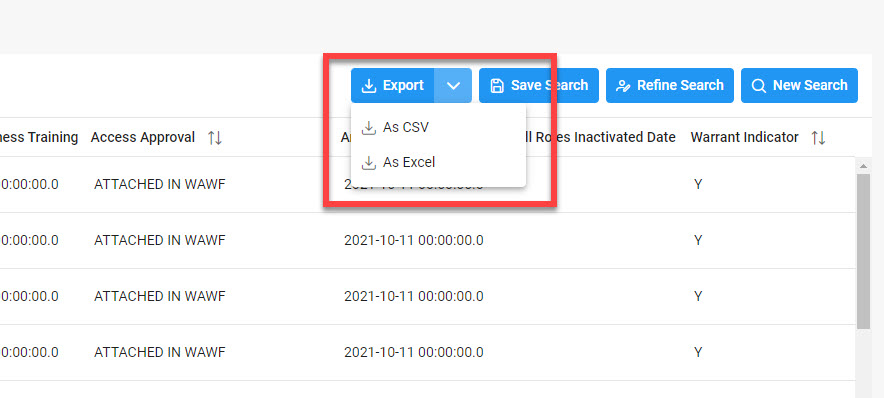
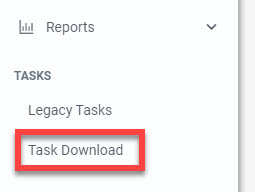
The requested download is available in the Task Download section of the application.
Sample Export:

|