Electronic Data Access (EDA) - GFP Attachment Aging Report
 

GFP Attachment Aging Report

Training Document


The GFP Attachment Aging Report provides information on days outstanding for attachments, attachment number and attachment date for GFP attachments.


EDA Roles

Roles with access to the GFP Attachment Aging Report:

  • Advanced Reporting
  • Acquisition Sensitive Reporting
  • EDA Executive Reporting User
Where to Run the Report

Expand the Reports menu under Analytics and select the GFP Reports option.

The image provides a preview of the GFP Position Report Results Search Page.

In the GFP Reports section select the GFP Attachment Aging Report.

The image provides a preview of the GFP Attachment Aging Report Results Search Page.

Search Criteria

The GFP Attachment Aging Report page displays. Enter search criteria to retrieve desired data.

GFP Attachment Aging Report Search Criteria:

  • Contract Number
  • Order Number

The image provides a preview of the GFP Attachment Aging Report Results Search Page.

Buttons:

  • Search
  • Bookmark
  • Cancel

Click the Search button after entering the search criteria. The search results display on the following page.

Search Results

The GFP Attachment Aging Report Results table displays the search results.

GFP Attachment Aging Report Results Columns:

  • Days Outstanding
  • Contract Number
  • Order Number
  • Mod Number
  • Attachment Number
  • Attachment Date
  • Last Update Date
  • Input Type

The image provides a preview of the GFP Attachment Aging Report Results Search Page.

Buttons:

  • Export
    • As CSV
    • As Excel
  • Save Search
  • Refine Search
  • New Search

NOTE: The columns are sortable.

Exporting Report Results

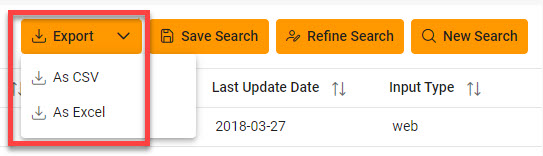
Click the Export button on the search results page to export as CSV or Excel. A job runs to download the file.

The image provides a preview of the GFP Attachment Aging Report Export Results button.

Viewing Available Downloads of Reports:

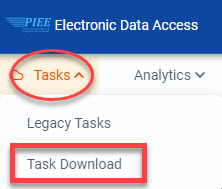
In the navigation panel, under the Tasks menu, select Task Download.

The image provides a preview of the Task navigation option.

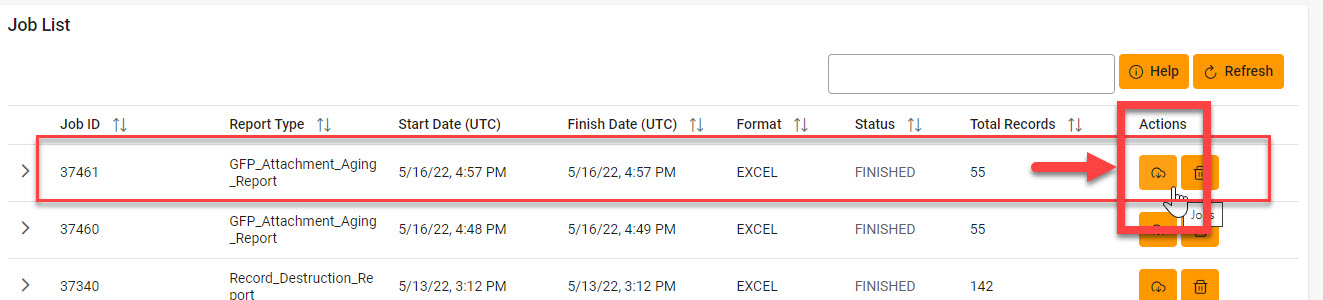
The Job List page appears. Click the Download button in the Actions column.

The image provides a preview of the GFP Attachment Aging Report Export Results button.

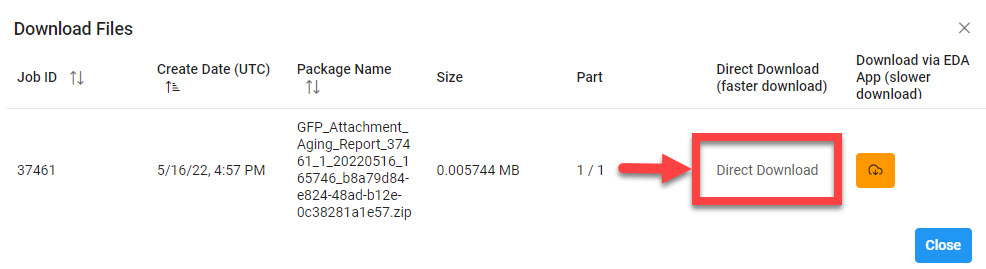
The Download Files pop-up appears with job details. Select the Direct Download link in the Direct Download (faster download) column.

The image provides a preview of the GFP Attachment Aging Report Export Results button.

The system downloads the file to the local machine based on browser settings.

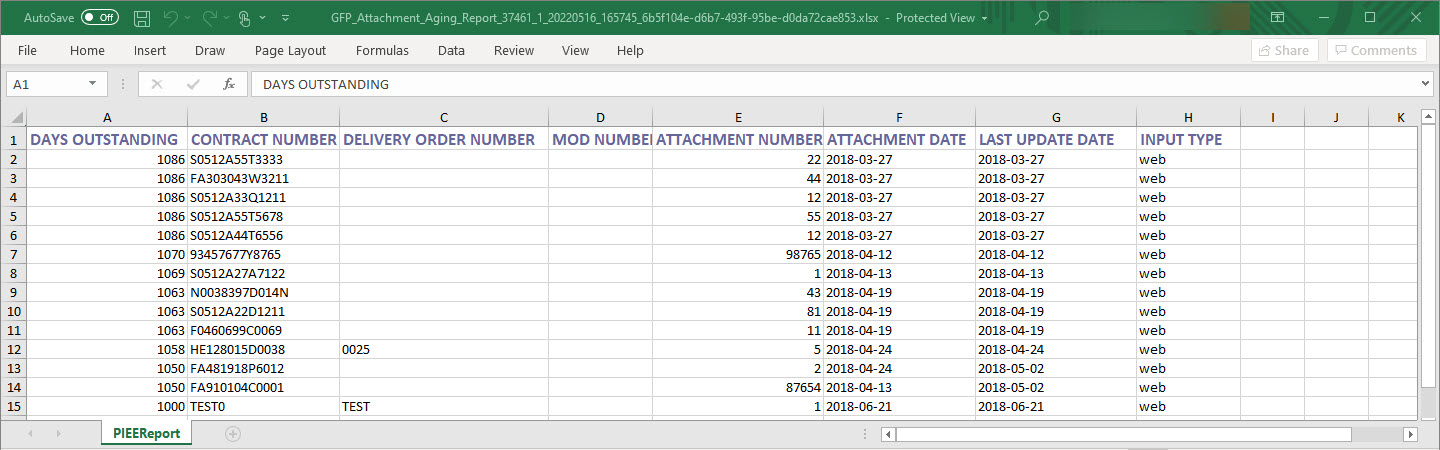
Exported Report Columns:

  • Days Outstanding
  • Contract Number
  • Delivery Order Number
  • Mod Number
  • Attachment Number
  • Attachment Date
  • Last Update Date
  • Input Type

Sample Export:

The image provides a preview of the GFP Attachment Aging Report Sample Export CSV Results.