| Search Criteria |
Select COR Post Award Surveillance Report from the JAM Reports page.
The user is navigated to the COR Post Award Surveillance Report page. Enter criteria to retrieve desired data.
Search fields:
-
Report Precision
Contract Summary or COR Details
-
-
Issue By
-
Search By
-
Organization Code
-
Organizational Group
-
Issue By Organizational Group
- Include Subgroups?
-
Date Search
-
Fiscal Year
-
Effective Date
- Effective Date Start
- Effective Date End
* To enter data, expand the Fiscal Year drop-down menu. The user may select one or more fiscal years.
- Use the search field to quickly locate a specific year(s) from the list.
- Select the checkbox of the year(s) to be included in the report.
- Select the checkbox at the top of the drop-down menu to select all available years.
After the search criteria has been entered, select the Search button.
|
| Sample Search Results |
COR Post Award Surveillance Report Search Results will include the following data:
COR Post Award Surveillance Summary Results:
(results display when “Summary” is selected for ‘Contract Summary or COR Details’ field on the search criteria)
- Agency Information – Name
- Agency Information – DoDAAC
- Contract Number
- Task Order Number
- Contract Award Date
- Fiscal Year
- Contracting Officer
- Number of CORs
- PoP (Period of Performance Monitoring) Start Date *
- PoP Monitoring End Date *
- QASP Reporting Interval
- Designation Block 12 Reporting Interval
- SR Due Date *
- WAWF Invoice Inspection Timelines
* If multiple Primary CORS are appointed on this contract, please refer to the Detailed report for the applicable field.
COR Post Award Surveillance Summary Results:
(results display when “Details” is selected for ‘Contract Summary or COR Details’ field on the search criteria)
- Agency Information – Name
- Agency Information – DoDAAC
- Contract Number
- Task Order Number
- Contract Award Date
- Fiscal Year
- Contracting Officer
- Primary COR
- COR Status
- Alternate COR
- Most recently appointed Alternate COR if multiple alternate CORs have been appointed.
- Appointment Date
- PoP (Period of Performance Monitoring) Start Date
- PoP Monitoring End Date
- QASP Reporting Interval
- Designation Block 12 Reporting Interval
- SR (Status Report) Completion Percentage
- Number of Status Reports that have been made ÷ number of report intervals (from most recent Quality Assurance Surveillance Plan [QASP]) since the PoP Monitoring Start Date
- This pertains to the Status Report submitted by the COR in SPM after award of the contract.
- Method of calculation:
- Calculate total number of Status Reports made: Count the number of Status Reports that have been submitted by the SPM user for the Contract
- Determine number of intervals: Calculate the number of Report intervals from the most recent QASP since the PoP Monitoring Start Date; Report intervals are defined in the QASP and can be monthly, quarterly, annually, or biannually
- Check PoP Monitoring End Date: Verify if the PoP Monitoring End Date associated with the contract has expired; if the end date has expired, the award contract is considered over, and the calculation should stop at this point
- Display SR Completion Percentage: The calculated percentage is formatted to two decimal places (e.g., 75.00%); the percentage does not exceed a ceiling of 100%
- Handle edge case: If no Status Reports have been made and the PoP is still ongoing, the percentage is displayed as 0.00%
- SR Due Date
- ACFIC (Annual COR File Inspection Checklist) Due Date
- PoP Monitoring Start Date + 365 days (policy established by DFARSPGI 201.60-2)
- ACFIC Signed Date
- Date of Contracting Officer (KO) signature.
- ACFIC Completion Timeliness
- If ACFIC Signed Date exists: ACFIC Signed Date - ACFIC Due Date
- If no ACFIC Signed Date: ACFIC Due Date - ACFIC Completion Date
- WAWF Invoice Inspection Timeliness
- Average number of days to accept invoice.
|
| Exporting Search Results |
To download the COR Post Award Surveillance Report data to a spreadsheet, expand the Export dropdown menu and select either CSV or Excel format.

To retrieve exported report data, select the Task Download link in the Tasks menu in the navigation pane.
Exports will be listed on the Job List page. Jobs with a status of Finished will be available for download.
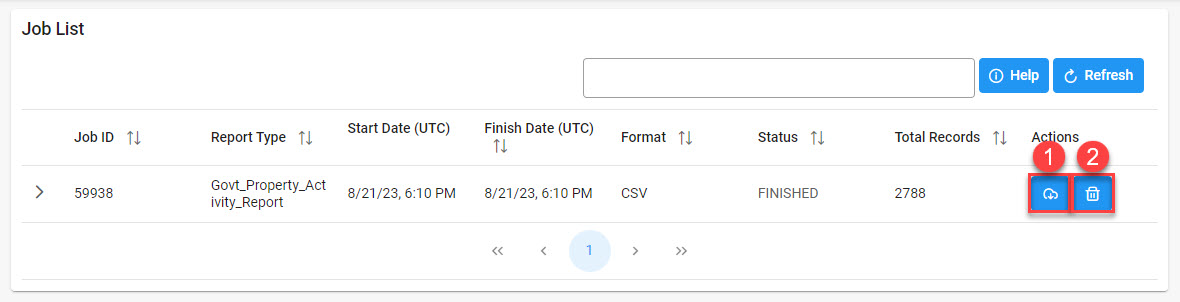
- Select the Download button in the Actions column to proceed with downloading the report.
- Select the Delete button in the Actions column to delete the download from the job list.
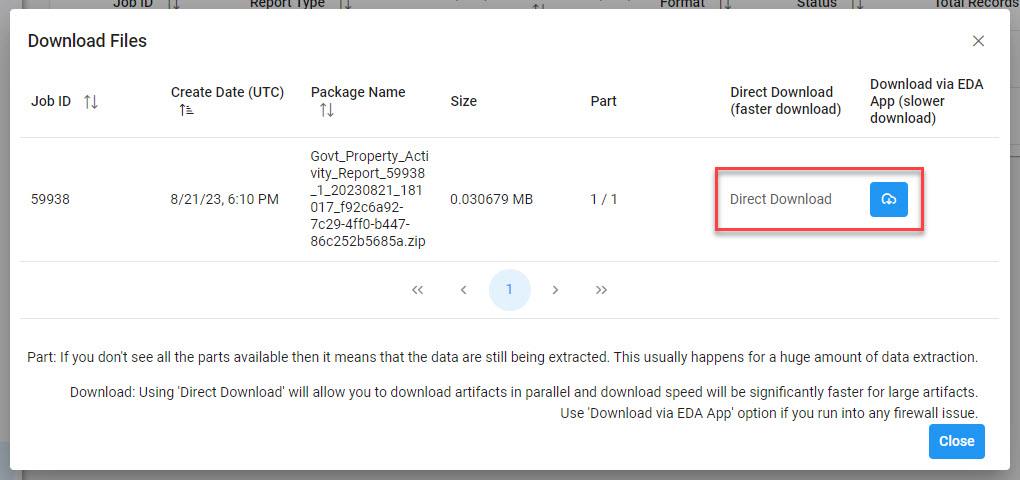
Selecting the Download button will present the Download Files modal. To download the report data to the local directory, select Direct Download or Download via EDA App.
|